针对调试C语言时一闪而过解决办法
前提:
已经按照 C/C++
已经安装 MINGW(并配置完成)
原因:
主要是因为tasks的配置没有写对
解决办法:
tasks.json
1{
2    // See https://go.microsoft.com/fwlink/?LinkId=733558
3    // for the documentation about the tasks.json format
4    "version": "2.0.0",
5    "command": "gcc",
6    //gcc 编译条件
7    //gcc gdb-sample.c -o gdb-sample -g
8    "args": [
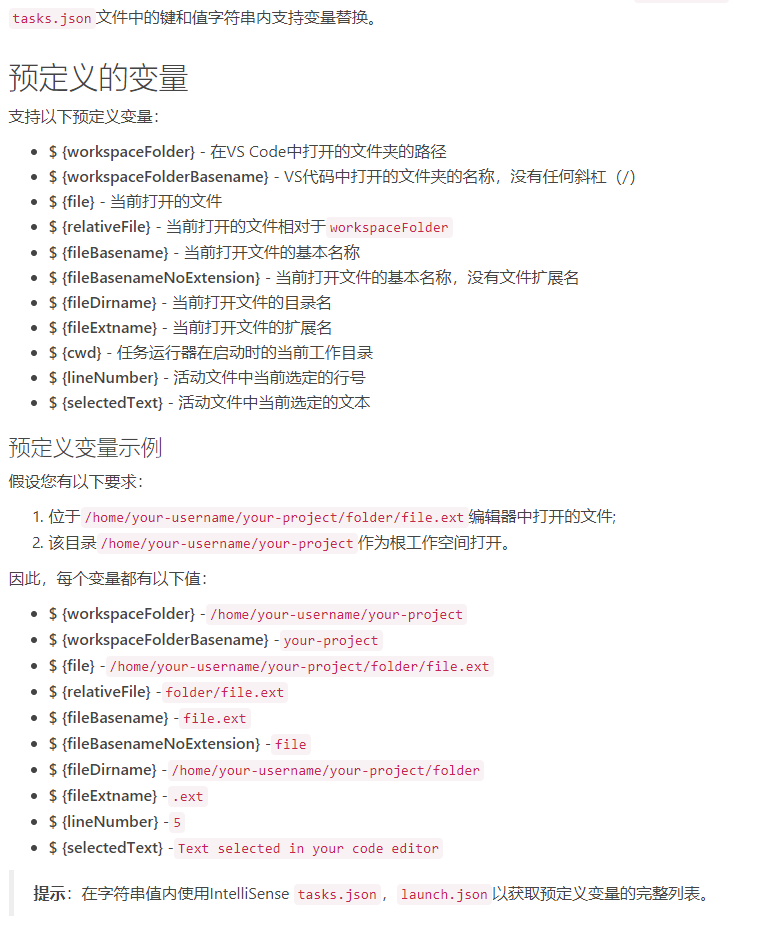
9        "${file}",
10        "-o",
11        "${fileDirname}/${fileBasenameNoExtension}",
12        "-g",
13    ],
14}
最主要的就是args这个参数了
配合GCC编译调试条件填写即可
gcc gdb-sample.c -o gdb-sample -g
gcc="command": "gcc"
gdb-sample.c=源文件 也就是 "${file}"
-o=编译条件
gdb-sample="生成文件",可以写成"${fileDirname}/${fileBasenameNoExtension}",
-g=调试条件
Launch.json
1{
2    // 使用 IntelliSense 了解相关属性。
3    // 悬停以查看现有属性的描述。
4    // 欲了解更多信息,请访问: https://go.microsoft.com/fwlink/?linkid=830387
5    "version": "0.2.0",
6    "configurations": [
7        {
8            "name": "(gdb) Launch",
9            "type": "cppdbg",
10            "request": "launch",
11            "targetArchitecture": "x64",
12            "program": "${fileDirname}/${fileBasenameNoExtension}.exe",
13            "args": [],
14            "stopAtEntry": false,
15            "cwd": "${workspaceFolder}",
16            "environment": [],
17            "externalConsole": false,
18            "MIMode": "gdb",
19            "miDebuggerPath": "C:\\MinGW\\bin\\gdb.exe",
20            "setupCommands": [
21                {
22                    "description": "Enable pretty-printing for gdb",
23                    "text": "-enable-pretty-printing",
24                    "ignoreFailures": true
25                }
26            ],
27            "preLaunchTask": "gcc"
28        }
29    ]
30}
launch最主要就是两个
miDebugggerPath=这个是gdb所在的位置,仔细填写即可
program=这个则是调试可运行程序所在的位置。
对于具体的vscode的条件编写可以参考https://code.visualstudio.com/docs/editor/variables-reference【可配合谷歌浏览器实时翻译】