原文链接:https://note.noxussj.top/?source=helloworld
正常布局
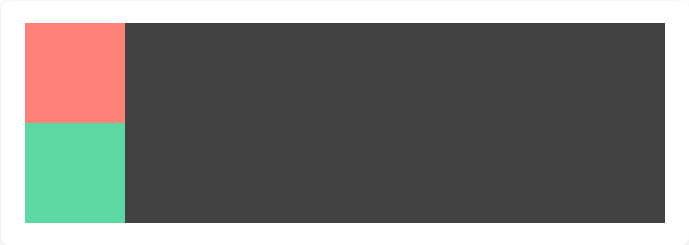
文档流布局方式,按照顺序一个个排列好,效果如下图:
1<html>
2    <head>
3        <style>
4            .box1 {
5                width: 100px;
6                height: 100px;
7                background-color: #ff8077;
8            }
9
10            .box2 {
11                width: 100px;
12                height: 100px;
13                background-color: #5cd8a2;
14            }
15        </style>
16    </head>
17    <body>
18        <div class="box1"></div>
19        <div class="box2"></div>
20    </body>
21</html>
绝对定位
该元素脱离文档流,不参与布局一个个排列。完全自由想去哪里就去哪里。写了绝对定位就要写上 left 和 top。 这两者默认是距离文档左上角的距离。
1<html>
2    <head>
3        <style>
4            .box1 {
5                position: absolute;
6                left: 20px;
7                top: 20px;
8                width: 100px;
9                height: 100px;
10                background-color: #ff8077;
11            }
12
13            .box2 {
14                width: 100px;
15                height: 100px;
16                background-color: #5cd8a2;
17            }
18        </style>
19    </head>
20    <body>
21        <div class="box1"></div>
22        <div class="box2"></div>
23    </body>
24</html>
::: warning 由于预览模式是模拟的,为了让小伙伴更好的观看,可以把灰色想象成就是文档部分 body 标签。而且 body 标签默认是自带了 8px 的 margin。 :::

相对定位
刚才已经介绍了绝对定位可以通过 left 和 top 来控制距离文档左上角的距离,也就是说 left 和 top 是相对于 "文档" 进行定位的。而相对定位则是把这个相对于 "某某元素" 进行修改。
1<html>
2    <head>
3        <style>
4            .box1 {
5                position: absolute;
6                left: 20px;
7                top: 20px;
8                width: 100px;
9                height: 100px;
10                background-color: #ff8077;
11            }
12
13            .box2 {
14                position: relative;
15                width: 100px;
16                height: 100px;
17                background-color: #5cd8a2;
18            }
19        </style>
20    </head>
21    <body>
22        <div class="box2">
23            <div class="box1"></div>
24        </div>
25    </body>
26</html>
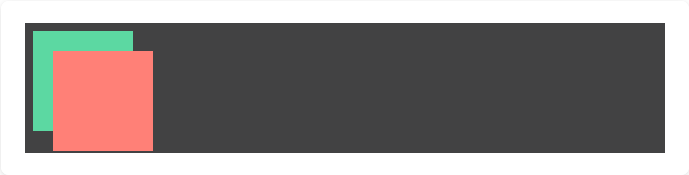
现在把 box1 放进 box2 里面,并且给 box2 设置相对定位 position: relative 那么 box1 的 left 和 top 就会相对于 box2 的左上角原点。
固定定位
固定定位和绝对定位很像,可以让元素飘起来,想去哪里去哪里。但是绝对定位是相对于 "某某元素" 进行定位的。而固定定位则是永远是相对于 "浏览器可视区左上角"。尽管出现了滚动条也是丝毫不影响。
1<html>
2    <head>
3        <style>
4            .box1 {
5                position: fixed;
6                left: 0;
7                top: 0;
8                width: 100px;
9                height: 100px;
10                background-color: #ff8077;
11            }
12
13            .box2 {
14                position: relative;
15                width: 100px;
16                height: 100px;
17                background-color: #5cd8a2;
18            }
19        </style>
20    </head>
21    <body>
22        <div class="box2">
23            <div class="box1"></div>
24        </div>
25    </body>
26</html>

可以发现尽管 box1 在 box2 里面,并且 box2 也设置了相对定位,box1 依然直接无视了,直接相对于 "可视区左上角" 进行定位。