
MaterialApp
见名思其意,材料设计类型的App,在安卓5.0正式加入一些材料设计类型的组件之后,App风格也越来越趋向于材料设计类型。MaterialApp就是符合材料设计理念的App框架级Widget。它其实也是一个Widget。它由主题,title,路由,主页等。以下是其构造方法:
-
const MaterialApp({ -
Key key, -
//导航键 -
this.navigatorKey, -
//主页,应用默认所显示的界面 Widget -
this.home, -
//路由,应用的顶级导航表格,这个是多页面应用用来控制页面跳转的,类似于网页的网址 -
this.routes = const <String, WidgetBuilder>{}, -
//初始路由,第一个显示的路由名字,默认值为 Window.defaultRouteName -
this.initialRoute, -
//生成路由,生成路由的回调函数,当导航的命名路由的时候,会使用这个来生成界面 -
this.onGenerateRoute, -
//未知路由 -
this.onUnknownRoute, -
//导航观察器,应用 Navigator 的监听器 -
this.navigatorObservers = const <NavigatorObserver>[], -
//构造者 -
this.builder, -
//标题,在任务管理窗口中所显示的应用名字 -
this.title = '', -
//生成标题 -
this.onGenerateTitle, -
//颜色,应用的主要颜色值(primary color),也就是安卓任务管理窗口中所显示的应用颜色 -
this.color, -
//主题,应用各种 UI 所使用的主题颜色 -
this.theme, -
this.darkTheme, -
this.themeMode = ThemeMode.system, -
//地域,国际化 -
this.locale, -
//本地化委托 -
this.localizationsDelegates, -
//区域分辨率回调 -
this.localeListResolutionCallback, -
this.localeResolutionCallback, -
//支持区域 -
this.supportedLocales = const <Locale>[Locale('en', 'US')], -
//调试显示材质网格,是否显示 纸墨设计 基础布局网格,用来调试 UI 的工具 -
this.debugShowMaterialGrid = false, -
//显示性能标签 -
this.showPerformanceOverlay = false, -
this.checkerboardRasterCacheImages = false, -
this.checkerboardOffscreenLayers = false, -
this.showSemanticsDebugger = false, -
this.debugShowCheckedModeBanner = true, -
})
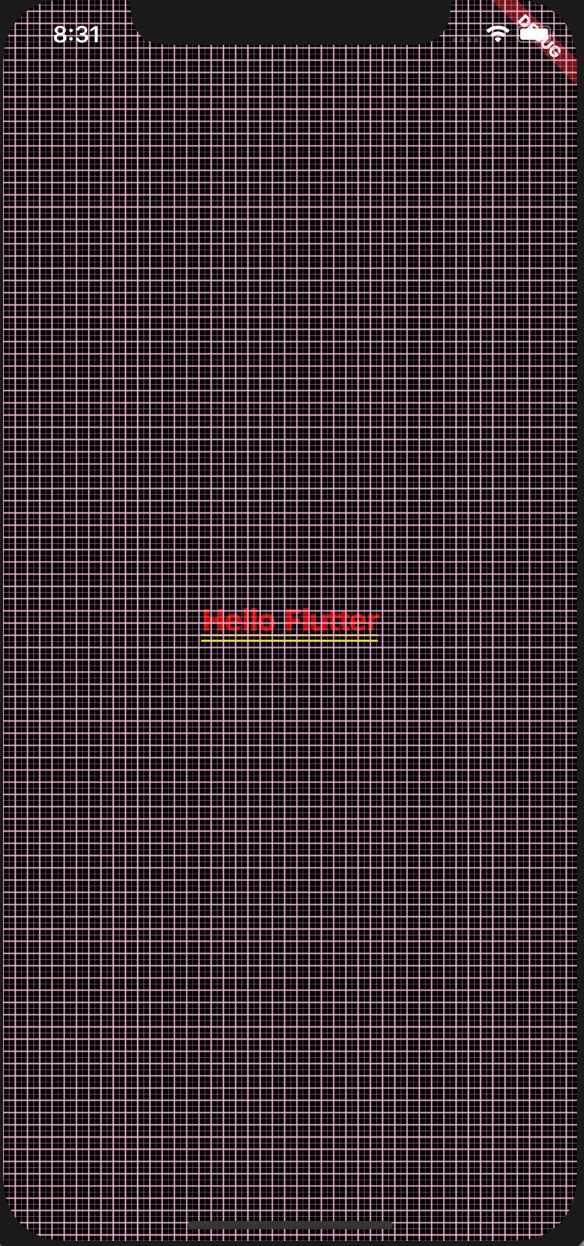
主页
一个用来定义打开应用时候显示的第一个Widget界面。如:
-
class MaterialMyApp extends StatelessWidget { -
@override -
Widget build(BuildContext context) { -
return MaterialApp( -
title: "我是Flutter标题", -
theme: ThemeData( -
primaryColor: Colors.redAccent, -
), -
home:Center( -
child: Text("Hello Flutter",style: TextStyle(fontSize: 20),), -
) -
//MyHomePage(), -
,debugShowMaterialGrid: true, -
); -
} -
}
效果图
title
任务窗口中,APP显示的标题名字。如:
-
class MaterialMyApp extends StatelessWidget { -
@override -
Widget build(BuildContext context) { -
return MaterialApp( -
title: "我是Flutter标题", -
theme: ThemeData( -
primaryColor: Colors.redAccent, -
), -
home:MyHomePage(), -
); -
} -
}
路由
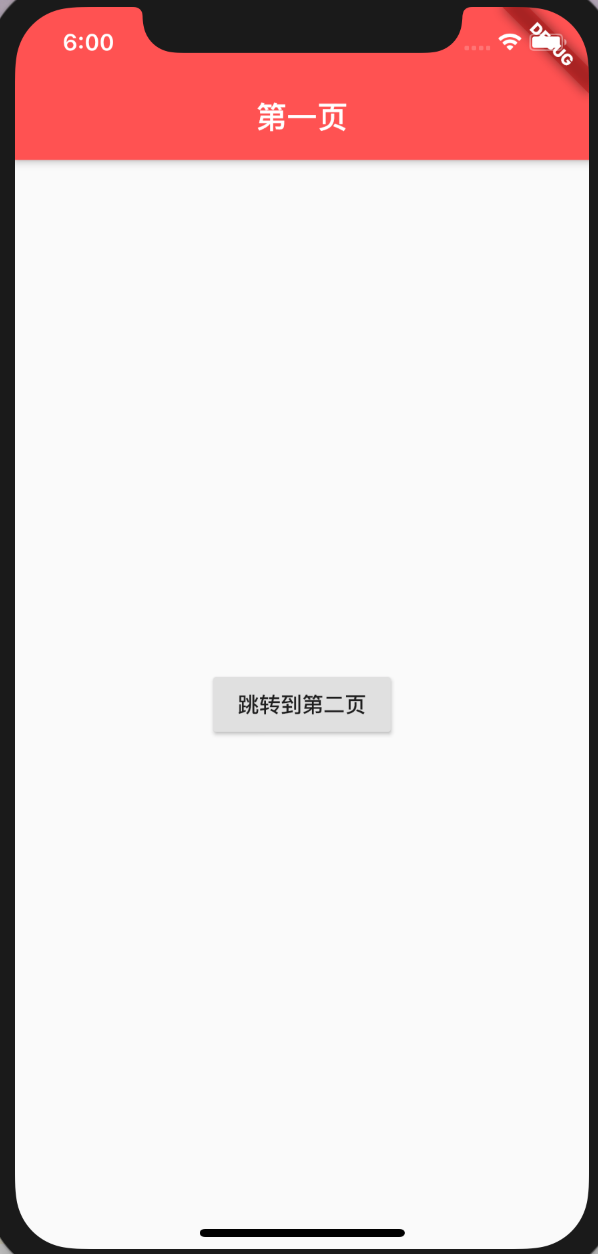
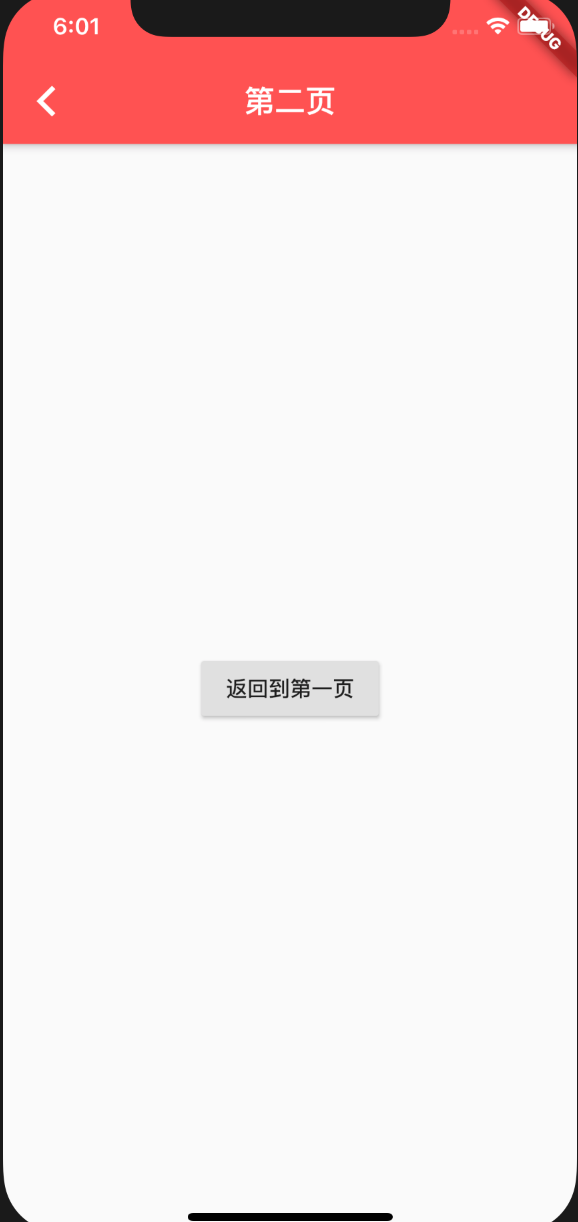
Map 类型,是应用的顶级路由表。当我们再使用Navigator.pushNamed进行命名路由的跳转时,会在此路表中进行查找并跳转。如果你的应用程序只有一个页面,则无需使用routes,直接指定home对应的Widget即可。如:
-
class MaterialMyApp extends StatelessWidget { -
@override -
Widget build(BuildContext context) { -
return MaterialApp( -
title: "我是Flutter标题", -
routes: <String,WidgetBuilder>{ -
"/first":(BuildContext context)=>FirstPage(), -
"/second":(BuildContext context)=>SecondPage() -
}, -
theme: ThemeData( -
primaryColor: Colors.redAccent, -
), -
home:/*Center( -
child: Text("Hello Flutter",style: TextStyle(fontSize: 20),), -
)*/FirstPage() -
, -
debugShowMaterialGrid: false, -
); -
} -
} -
class FirstPage extends StatelessWidget { -
@override -
Widget build(BuildContext context) { -
return Scaffold( -
appBar: AppBar( -
title: Text("第一页"), -
), -
body: Center( -
child: RaisedButton(onPressed:(){ -
Navigator.pushNamed(context, '/second'); -
},child: Text("跳转到第二页"),), -
), -
); -
} -
} -
class SecondPage extends StatelessWidget { -
@override -
Widget build(BuildContext context) { -
return Scaffold( -
appBar: AppBar( -
title: Text("第二页"), -
), -
body: Center( -
child: RaisedButton(onPressed:(){ -
Navigator.of(context).pop(context); -
},child: Text("返回到第一页"),), -
), -
); -
} -
}
效果图
国际化
Scaffold
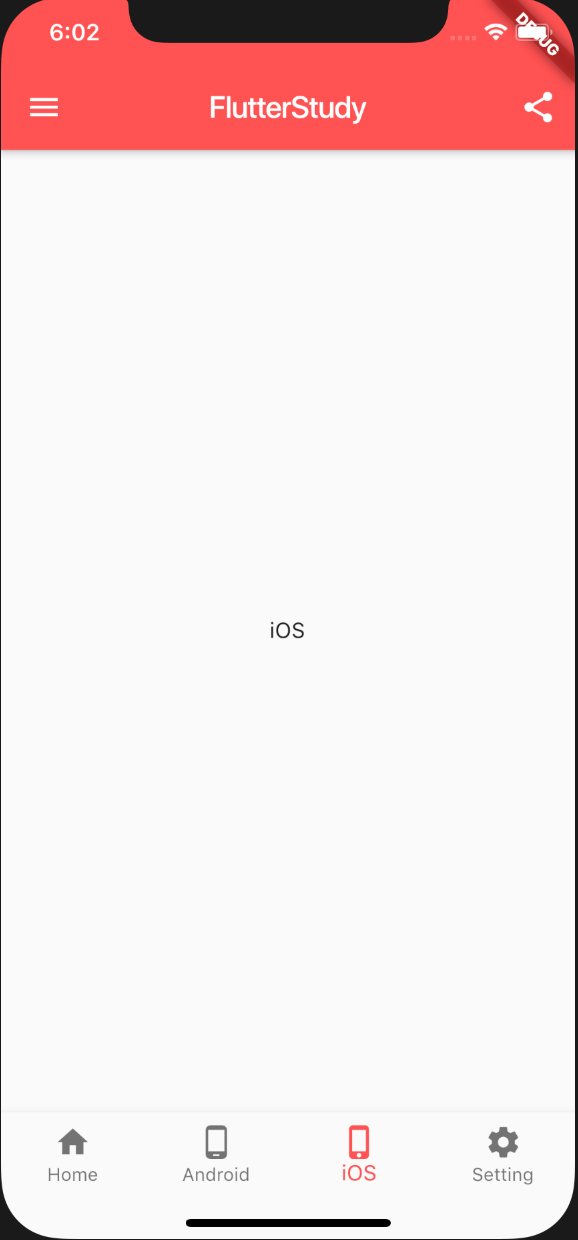
Scaffold是一个路由页的骨架,同样也是Material组件,主要有底部导航,顶部导航,侧面抽屉布局导航。
构造方法
-
const Scaffold({ -
Key key, -
this.appBar,//设置应用栏,显示在脚手架顶部 -
this.body,//展示页面的内容 -
this.floatingActionButton,//设置悬浮于上层区域的按钮 -
this.floatingActionButtonLocation,//设置floatingActionButton的位置 -
this.floatingActionButtonAnimator, -
this.persistentFooterButtons, -
this.drawer,//设置左边侧边栏 -
this.endDrawer,//设置右边侧边栏 -
this.bottomNavigationBar,//底部导航栏 -
this.bottomSheet,//底部抽屉栏 -
this.backgroundColor,//背景颜色 -
this.resizeToAvoidBottomPadding,//自动适应底部padding -
this.resizeToAvoidBottomInset, -
this.primary = true, -
this.drawerDragStartBehavior = DragStartBehavior.start, -
this.extendBody = false, -
this.drawerScrimColor, -
})
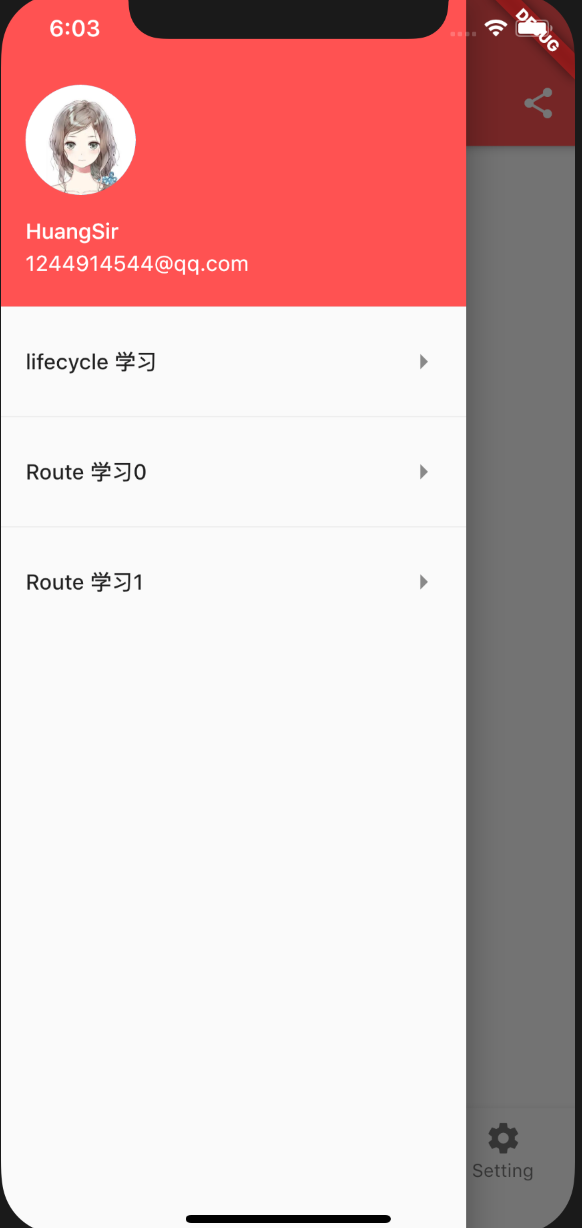
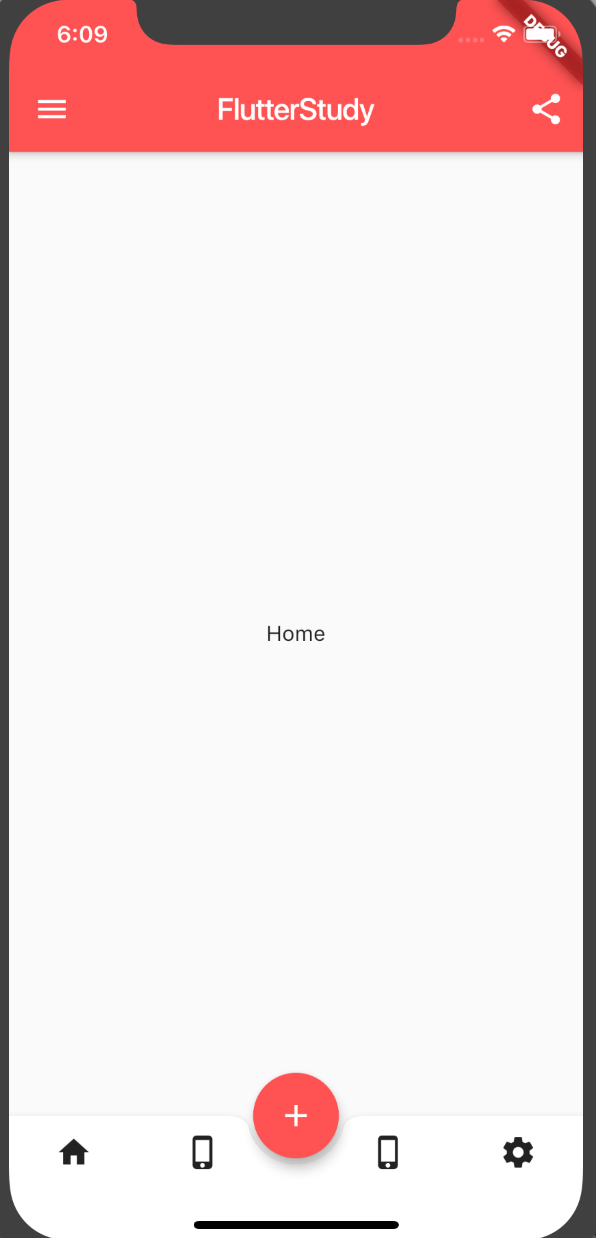
下面是一个常用的页面导航,包括appBar,drawer,还有bottomNavigationBar。
效果图
appBar
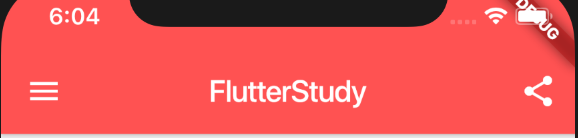
AppBar是一个Material风格的导航栏,通过它可以设置导航栏标题、导航栏菜单、导航栏底部的Tab标题。
其常用属性
-
AppBar({ -
Key key, -
this.leading, //导航栏最左侧Widget,常见为抽屉菜单按钮或返回按钮。 -
this.automaticallyImplyLeading = true, //如果leading为null,是否自动实现默认的leading按钮 -
this.title,// 页面标题 -
this.actions, // 导航栏右侧菜单 -
this.bottom, // 导航栏底部菜单,通常为Tab按钮组 -
this.elevation = 4.0, // 导航栏阴影 -
this.centerTitle, //标题是否居中 -
this.backgroundColor,//背景颜色 -
... -
})
以上示意图AppBar代码。
-
appBar: new AppBar( -
title:new Text("FlutterStudy"), -
centerTitle: true, -
actions: <Widget>[ -
IconButton(icon: Icon(Icons.share), onPressed: (){ -
_scaffoldKey.currentState.showSnackBar(SnackBar(content:Text("点击了分享!"))); -
}) -
], -
),
图
drawer
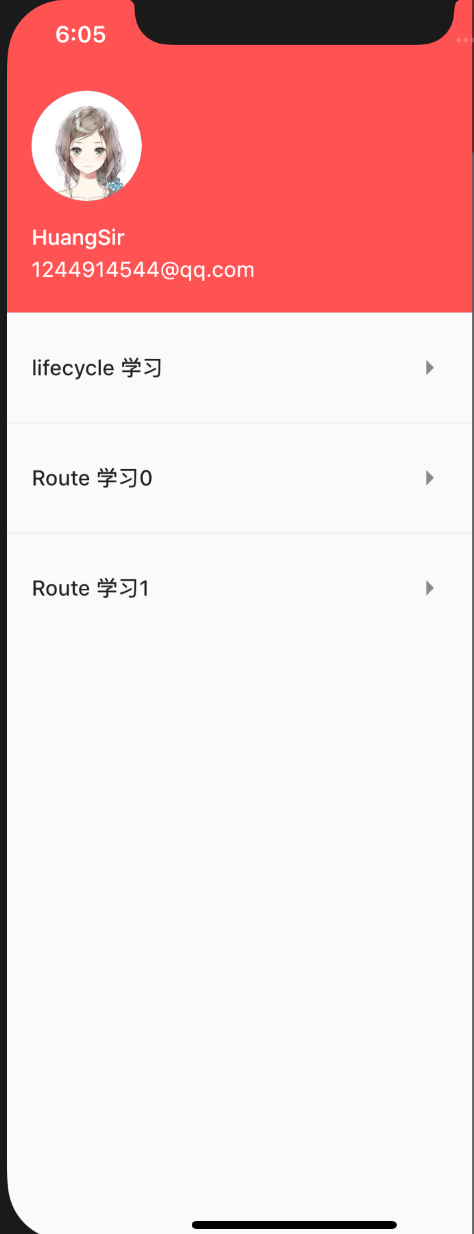
Scaffold的drawer和endDrawer属性可以分别接受一个Widget来作为页面的左、右抽屉菜单。如果开发者提供了抽屉菜单,那么当用户手指从屏幕左(或右)侧向里滑动时便可打开抽屉菜单。如果给Scaffold添加了抽屉菜单,默认情况下Scaffold会自动将AppBar的leading设置为菜单按钮。
-
drawer: new Drawer( -
child: new DrawerPage(),//提供一个Widget -
),
图
bottomNavigationBar
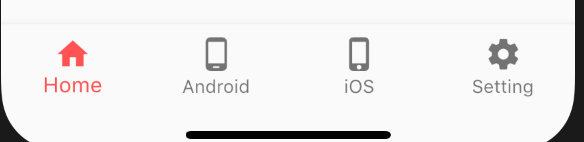
- BottomNavigationBar 常用的底部导航控件,还有一种BottomAppBar控件,它和FloatingActionButton配合实现底部不规则导航。
-
new BottomNavigationBar( -
items: [ -
new BottomNavigationBarItem( -
icon: new Icon(Icons.home), -
title: new Text("Home") -
), -
new BottomNavigationBarItem( -
icon: new Icon(Icons.phone_android), -
title: new Text("Android") -
), -
new BottomNavigationBarItem( -
icon: new Icon(Icons.phone_iphone), -
title: new Text("iOS") -
), -
new BottomNavigationBarItem( -
icon: new Icon(Icons.settings), -
title: new Text("Setting") -
), -
], -
type: BottomNavigationBarType.fixed, -
currentIndex: _curIndex, -
onTap: (index){ -
setState(() { -
_curIndex=index; -
}); -
}, -
)
图
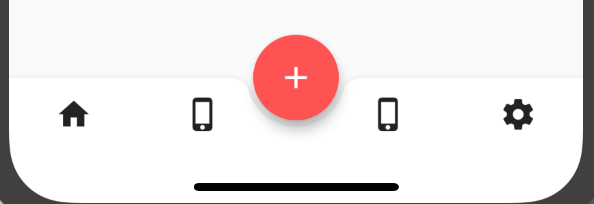
- BottomAppBar
-
BottomAppBar( -
color: Colors.white, -
shape: CircularNotchedRectangle(), // 底部导航栏打一个圆形的洞 -
child: Row( -
children: [ -
IconButton(icon: Icon(Icons.home),onPressed: (){ -
setState(() { -
_curIndex=0; -
}); -
},), -
IconButton(icon: Icon(Icons.phone_iphone),onPressed: (){ -
setState(() { -
_curIndex=1; -
}); -
},), -
SizedBox(), //中间位置空出 -
IconButton(icon: Icon(Icons.phone_iphone),onPressed: (){ -
setState(() { -
_curIndex=2; -
}); -
},), -
IconButton(icon: Icon(Icons.settings),onPressed: (){ -
setState(() { -
_curIndex=3; -
}); -
},), -
], -
mainAxisAlignment: MainAxisAlignment.spaceAround, //均分底部导航栏横向空间 -
), -
), -
floatingActionButton:isNormalShow?null: FloatingActionButton(onPressed: (){ -
},backgroundColor: Colors.redAccent, -
child: Icon(Icons.add),), -
floatingActionButtonLocation:isNormalShow?null: FloatingActionButtonLocation.centerDocked,//设置floatingActionButton的位置
控制isNormalShow属性控制显示不同的底部导航。
图
完整代码
-
import 'package:flutter/material.dart'; -
class MyScaffold1 extends StatelessWidget { -
@override -
Widget build(BuildContext context) { -
return MaterialApp( -
title: "我是标题", -
theme: ThemeData( -
primaryColor: Colors.redAccent -
), -
home: HomePage(), -
); -
} -
} -
class HomePage extends StatefulWidget { -
@override -
_HomePage createState() => _HomePage(); -
} -
class _HomePage extends State<HomePage>{ -
final GlobalKey<ScaffoldState> _scaffoldKey = GlobalKey<ScaffoldState>(); -
int _curIndex=0; -
List<ContentPage> contents=new List(); -
bool isNormalShow=true; -
@override -
void initState() { -
// TODO: implement initState -
super.initState(); -
contents.add(new ContentPage(content:"Home")); -
contents.add(new ContentPage(content:"Android")); -
contents.add(new ContentPage(content:"iOS")); -
contents.add(new ContentPage(content:"Setting")); -
} -
@override -
void dispose() { -
// TODO: implement dispose -
super.dispose(); -
} -
@override -
Widget build(BuildContext context) { -
// TODO: implement build -
return new Scaffold( -
key: _scaffoldKey, -
appBar: new AppBar( -
title:new Text("FlutterStudy"), -
centerTitle: true, -
actions: <Widget>[ -
IconButton(icon: Icon(Icons.share), onPressed: (){ -
_scaffoldKey.currentState.showSnackBar(SnackBar(content:Text("点击了分享!"))); -
}) -
], -
), -
drawer: new Drawer( -
child: new DrawerPage(), -
), -
body: contents[_curIndex], -
bottomNavigationBar:isNormalShow? new BottomNavigationBar( -
items: [ -
new BottomNavigationBarItem( -
icon: new Icon(Icons.home), -
title: new Text("Home") -
), -
new BottomNavigationBarItem( -
icon: new Icon(Icons.phone_android), -
title: new Text("Android") -
), -
new BottomNavigationBarItem( -
icon: new Icon(Icons.phone_iphone), -
title: new Text("iOS") -
), -
new BottomNavigationBarItem( -
icon: new Icon(Icons.settings), -
title: new Text("Setting") -
), -
], -
type: BottomNavigationBarType.fixed, -
currentIndex: _curIndex, -
onTap: (index){ -
setState(() { -
_curIndex=index; -
}); -
}, -
):BottomAppBar( -
color: Colors.white, -
shape: CircularNotchedRectangle(), // 底部导航栏打一个圆形的洞 -
child: Row( -
children: [ -
IconButton(icon: Icon(Icons.home),onPressed: (){ -
setState(() { -
_curIndex=0; -
}); -
},), -
IconButton(icon: Icon(Icons.phone_iphone),onPressed: (){ -
setState(() { -
_curIndex=1; -
}); -
},), -
SizedBox(), //中间位置空出 -
IconButton(icon: Icon(Icons.phone_iphone),onPressed: (){ -
setState(() { -
_curIndex=2; -
}); -
},), -
IconButton(icon: Icon(Icons.settings),onPressed: (){ -
setState(() { -
_curIndex=3; -
}); -
},), -
], -
mainAxisAlignment: MainAxisAlignment.spaceAround, //均分底部导航栏横向空间 -
), -
), -
floatingActionButton:isNormalShow?null: FloatingActionButton(onPressed: (){ -
},backgroundColor: Colors.redAccent, -
child: Icon(Icons.add),), -
floatingActionButtonLocation:isNormalShow?null: FloatingActionButtonLocation.centerDocked, -
); -
} -
} -
class DrawerWidget extends StatefulWidget { -
@override -
State<StatefulWidget> createState() { -
// TODO: implement createState -
return new _DrawerWidgetStage(); -
} -
} -
class _DrawerWidgetStage extends State<DrawerWidget> { -
@override -
Widget build(BuildContext context) { -
// TODO: implement build -
return new ListView( -
padding: const EdgeInsets.only(), -
children: <Widget>[ -
new UserAccountsDrawerHeader( -
accountName: new Text("HuangSir"), -
accountEmail: new Text("1244914544@qq.com"), -
currentAccountPicture: new CircleAvatar( -
backgroundImage: new NetworkImage( -
"http://img.52z.com/upload/news/image/20181108/20181108204521_83402.jpg"), -
), -
), -
_getListTitle("lifecycle 学习", "/LifecyclePage"), -
new Divider(), -
_getListTitle("Route 学习0", "/RoutePage0"), -
new Divider(), -
_getListTitle("Route 学习1", "/RoutePage1"), -
], -
); -
} -
ListTile _getListTitle(String title, String route) { -
return new ListTile( -
title: new Text(title), -
trailing: new Icon(Icons.arrow_right), -
onTap: () { -
Navigator.of(context).pop(); -
Navigator.pushNamed(context, route); -
}, -
); -
} -
} -
class DrawerPage extends StatelessWidget { -
@override -
Widget build(BuildContext context) { -
// TODO: implement build -
return new Scaffold( -
body: new DrawerWidget(), -
); -
} -
} -
//内容页 -
class ContentPage extends StatelessWidget { -
final String content; -
const ContentPage({Key key, this.content}) : super(key: key); -
@override -
Widget build(BuildContext context) { -
return Center( -
child: Text(this.content), -
); -
} -
}
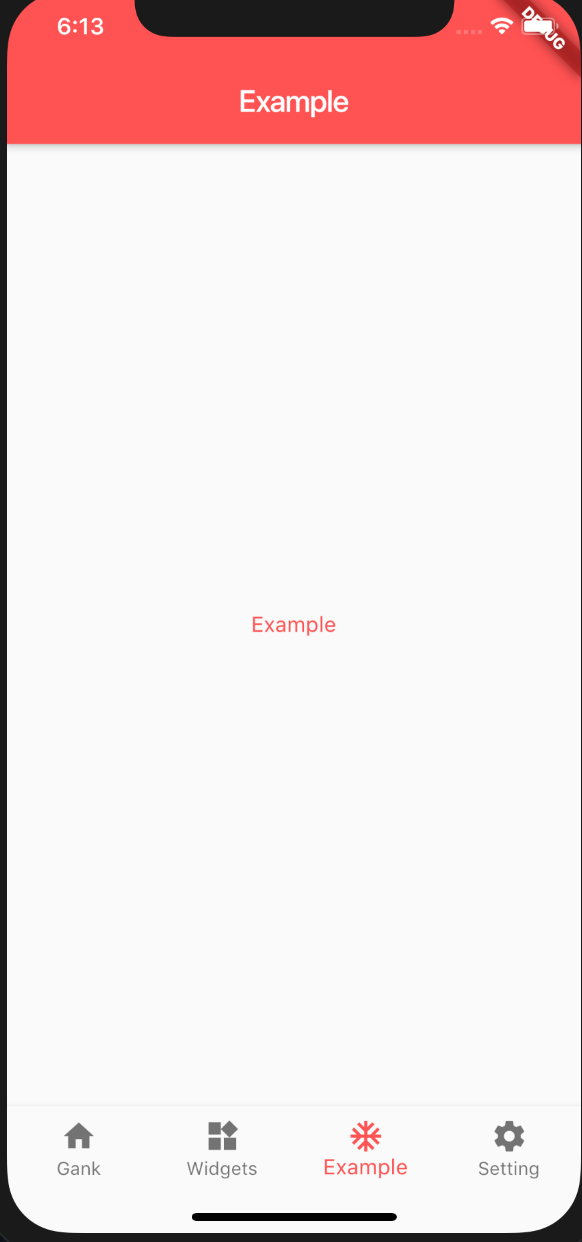
还有一种底部导航配合PageView实现的常用的App框架。但是每次点击页面都会调用页面的initState方法,其解决方法是使其内容页 with AutomaticKeepAliveClientMixin,实现
-
@override -
// TODO: implement wantKeepAlive -
bool get wantKeepAlive => true;
即可。
效果图
完整代码
-
import 'package:flutter/material.dart'; -
class MaterialMyApp extends StatelessWidget { -
@override -
Widget build(BuildContext context) { -
return MaterialApp( -
title: "我是Flutter标题", -
routes: <String, WidgetBuilder>{ -
"/first": (BuildContext context) => FirstPage(), -
"/second": (BuildContext context) => SecondPage() -
}, -
theme: ThemeData( -
primaryColor: Colors.redAccent, -
), -
home: MyHomePage(), -
debugShowMaterialGrid: false, -
); -
} -
} -
class FirstPage extends StatelessWidget { -
@override -
Widget build(BuildContext context) { -
return Scaffold( -
appBar: AppBar( -
title: Text("第一页"), -
), -
body: Center( -
child: RaisedButton( -
onPressed: () { -
Navigator.pushNamed(context, '/second'); -
}, -
child: Text("跳转到第二页"), -
), -
), -
); -
} -
} -
class SecondPage extends StatelessWidget { -
@override -
Widget build(BuildContext context) { -
return Scaffold( -
appBar: AppBar( -
title: Text("第二页"), -
), -
body: Center( -
child: RaisedButton( -
onPressed: () { -
Navigator.of(context).pop(context); -
}, -
child: Text("返回到第一页"), -
), -
), -
); -
} -
} -
/// -
/// 主页 -
/// -
class MyHomePage extends StatefulWidget { -
@override -
_MyHomePageState createState() => _MyHomePageState(); -
} -
class _MyHomePageState extends State<MyHomePage> { -
var _curIndex = 0; -
var _pagerController = new PageController(initialPage: 0); -
List<String> _tabs = ["Gank", "Widgets", "Example", "Setting"]; -
@override -
void initState() { -
super.initState(); -
} -
@override -
void dispose() { -
super.dispose(); -
} -
@override -
Widget build(BuildContext context) { -
return Scaffold( -
body: new PageView.builder( -
itemBuilder: (BuildContext context, int index) { -
return _buildPageItem(context, index); -
}, -
itemCount: _tabs.length, -
controller: _pagerController, -
onPageChanged: (index) { -
_onChangePageView(index); -
}, -
), -
bottomNavigationBar: BottomNavigationBar( -
items: [ -
_buildBottomItem(Icons.home, _tabs[0]), -
_buildBottomItem(Icons.widgets, _tabs[1]), -
_buildBottomItem(Icons.ac_unit, _tabs[2]), -
_buildBottomItem(Icons.settings, _tabs[3]), -
], -
currentIndex: _curIndex, -
type: BottomNavigationBarType.fixed, -
onTap: (index) { -
_pagerController.animateToPage(index, -
duration: const Duration(milliseconds: 300), curve: Curves.ease); -
}, -
), -
); -
} -
void _onChangePageView(int index) { -
setState(() { -
_curIndex = index; -
}); -
} -
Widget _buildPageItem(BuildContext context, int index) { -
return ContentWidget(content: _tabs[index]); -
} -
BottomNavigationBarItem _buildBottomItem(IconData iconData, String tab) { -
return new BottomNavigationBarItem(icon: Icon(iconData), title: Text(tab)); -
} -
} -
/// -
/// 内容页面 -
/// -
class ContentWidget extends StatefulWidget { -
final String content; -
const ContentWidget({Key key, this.content}) : super(key: key); -
@override -
State<StatefulWidget> createState() { -
// TODO: implement createState -
return new __ContentWidgetStage(); -
} -
} -
class __ContentWidgetStage extends State<ContentWidget> -
with AutomaticKeepAliveClientMixin { -
@override -
void initState() { -
// TODO: implement initState -
super.initState(); -
print("initState===>" + this.widget.content); -
} -
@override -
Widget build(BuildContext context) { -
// TODO: implement build -
return Scaffold( -
appBar: AppBar( -
title: Text(this.widget.content), -
), -
body: Center( -
child: Text( -
this.widget.content, -
style: TextStyle(color: Colors.redAccent), -
), -
), -
); -
} -
@override -
// TODO: implement wantKeepAlive -
bool get wantKeepAlive => true; -
}
本文分享自微信公众号 - Flutter学习簿(gh_d739155d3b2c)。
如有侵权,请联系 support@oschina.cn 删除。
本文参与“OSC源创计划”,欢迎正在阅读的你也加入,一起分享。